Select Version of EA Desktop:
The area defined by a cutout is the basis for calculating license fees and generating license documentation. The cutout is derived from a survey or from a product, depending on the client request.
To add a cutout, you must first add a survey or product (refer to Add a survey or product).
The functionality for adding a cutout is available in the Editor View of a license. Opening the Editor View is part of the steps in creating a new license (refer to Creating a license). Alternatively, can open the Editor View from an existing license.
 To open the Editor View from an existing license:
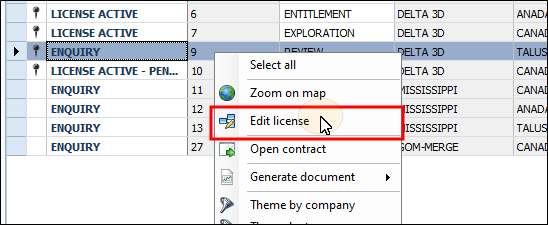
Locate the license in the License Properties grid of the License module. Right-click on the license to populate the context menu and click Edit License. The Editor View opens in a new tab and displays the license detail.
To add a cutout:
-
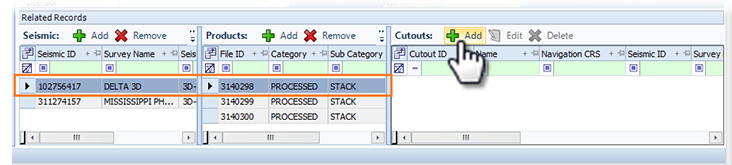
From the Editor View, select the originating seismic or product in the Related Records.
-
In the Cutout panel, click Add.
-
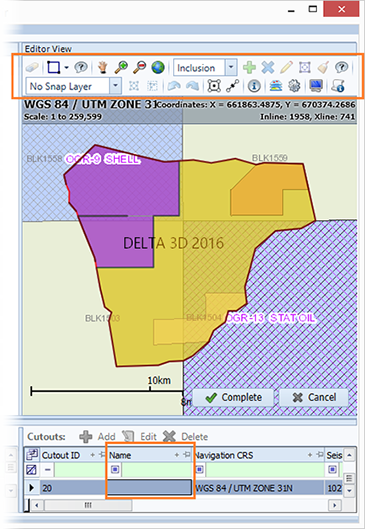
Add a name to the Name column.
-
Use the cutout editor to create the cutout (refer to Using the cutout editor).
-
When done, Click Complete.
A new row with an auto-generated Cutout ID adds to the Cutout panel as a placeholder for the cutout. The map view zooms to the associated survey, and the toolbar changes to include a variety of cutout tools.
The area defined by a cutout is the basis for calculating license fees and generating license documentation. The cutout is derived from a survey or from a product, depending on the client request.
To add a cutout, you must first add a survey or product (refer to Add a survey or product).
The functionality for adding a cutout is available in the Editor View of a license. Opening the Editor View is part of the steps in creating a new license (refer to Creating a license). Alternatively, can open the Editor View from an existing license.
To open the Editor View from an existing license:
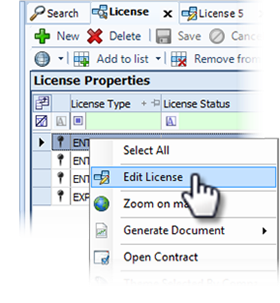
Locate the license in the License Properties grid of the License module. Right-click on the license to populate the context menu and click Edit License. The Editor View opens in a new tab and displays the license detail.
To add a cutout:
-
From the Editor View, select the originating seismic or product in the Related Records.
-
In the Cutout panel, click Add.
-
Add a name to the Name column.
-
Use the cutout editor to create the cutout (refer to Using the cutout editor).
-
When done, Click Complete.
A new row with an auto-generated Cutout ID adds to the Cutout panel as a placeholder for the cutout. The map view zooms to the associated survey, and the toolbar changes to include a variety of cutout tools.